Instagram Profile: The best setting there is Private
Updated July 2021 : Here are the steps to getting it done, for iPhone and Android Phones:
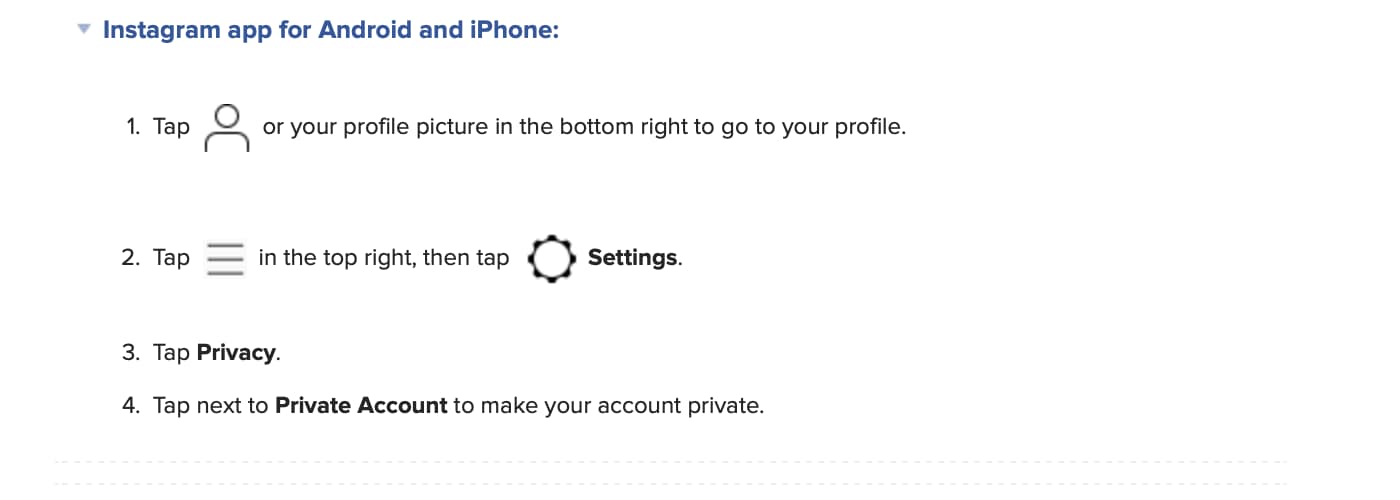
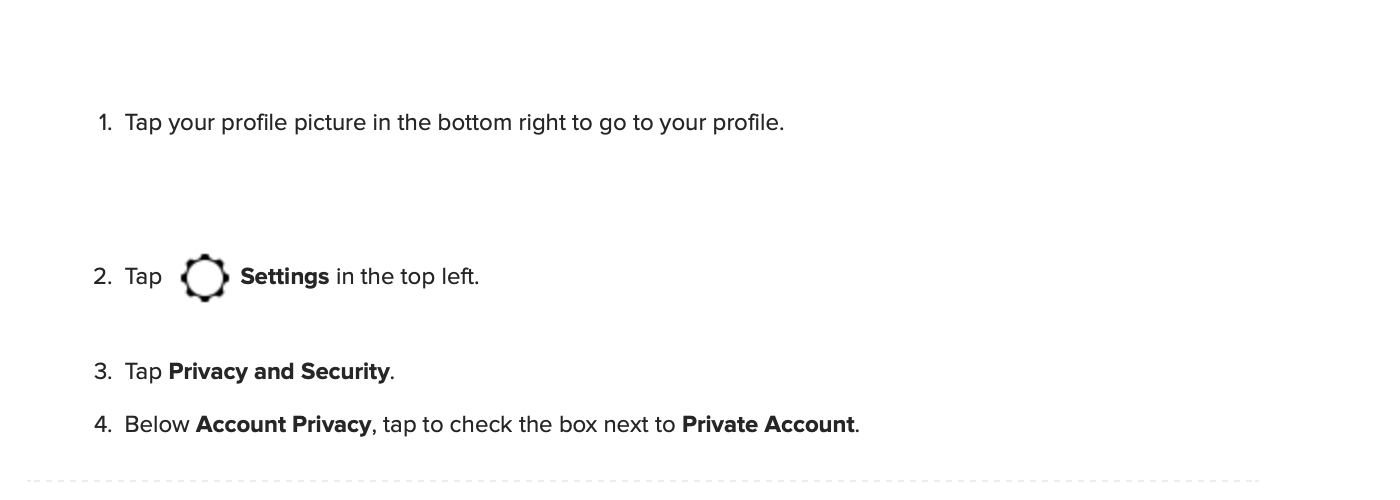
Tap the profile icon in the lower right-hand corner of your screen, and then tap the menu icon in the upper right.
If you are on a Schools Parents Association, we think you should ask School to recommend this approach to parents, teachers and kids and monitor the accounts in class.
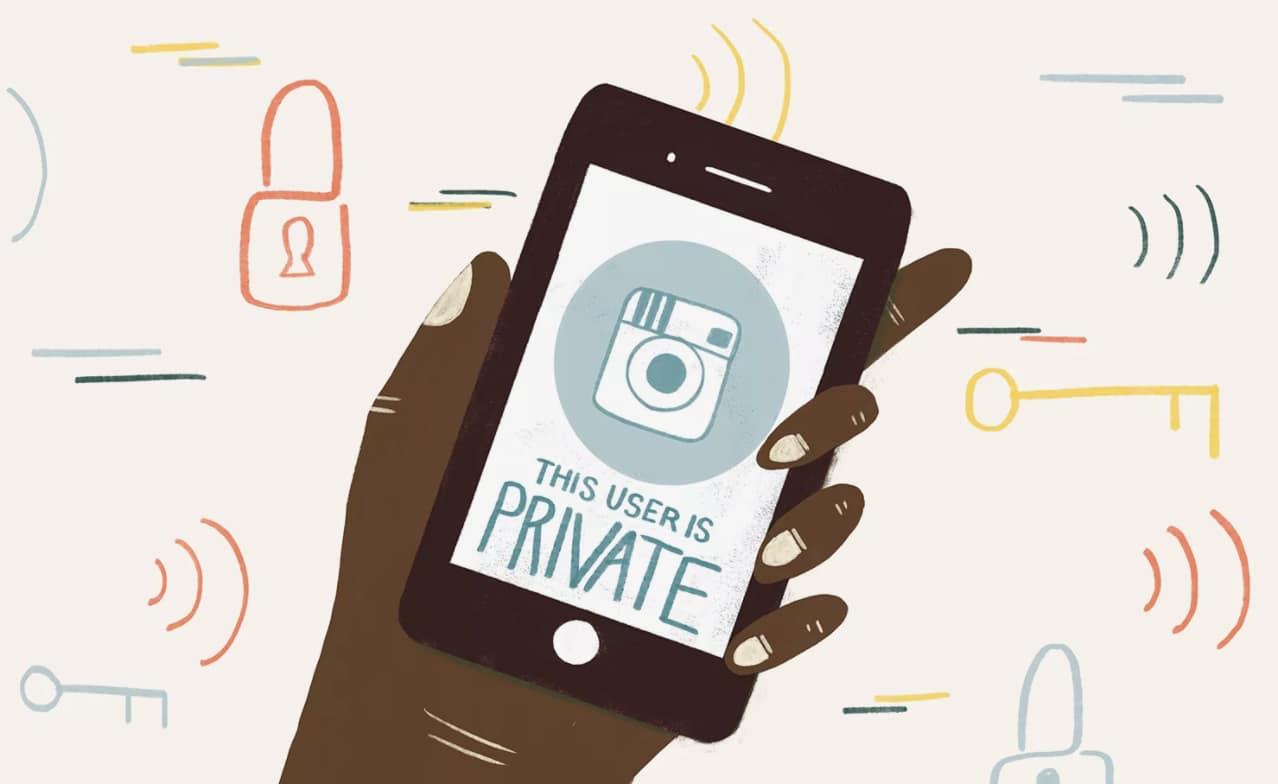
Nice and Easy!
- Tap the profile icon in the lower right-hand corner of your screen
- Tap the menu icon in the upper right
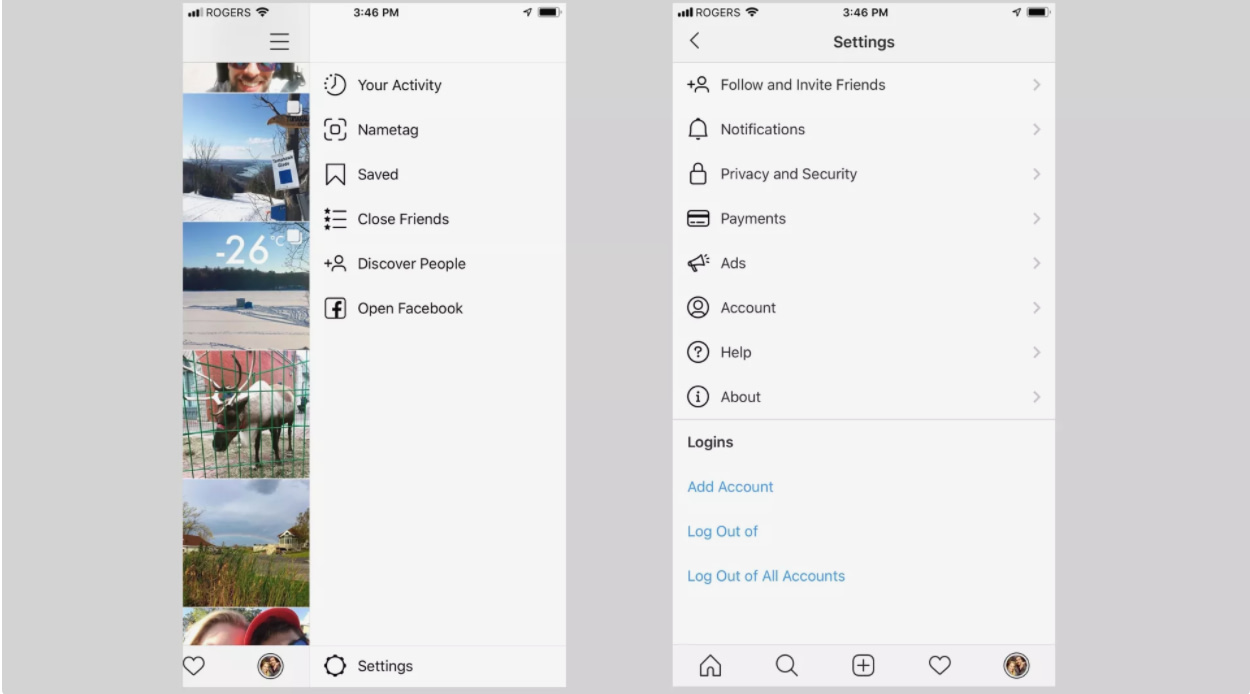
- Tap Account Privacy then tap the button next to Private Account
- Choose to block everyone or just certain photos
- Done that’s it
From iPhone or Android
From a Mobile Phone Browser
From a Computer
 Setting up Instagram privacy is easy
Tap Settings > Privacy.
Tap Account Privacy then tap the button next to Private Account.
Note – If it’s not your whole profile you want to make private, but just a few pictures, there is the option to hide ‘select photos’ on your Instagram account. The option is in the photo menu. That is it, your Instagram profile is private. For kids and young teenagers we ALWAYS recommend blocking the whole account.
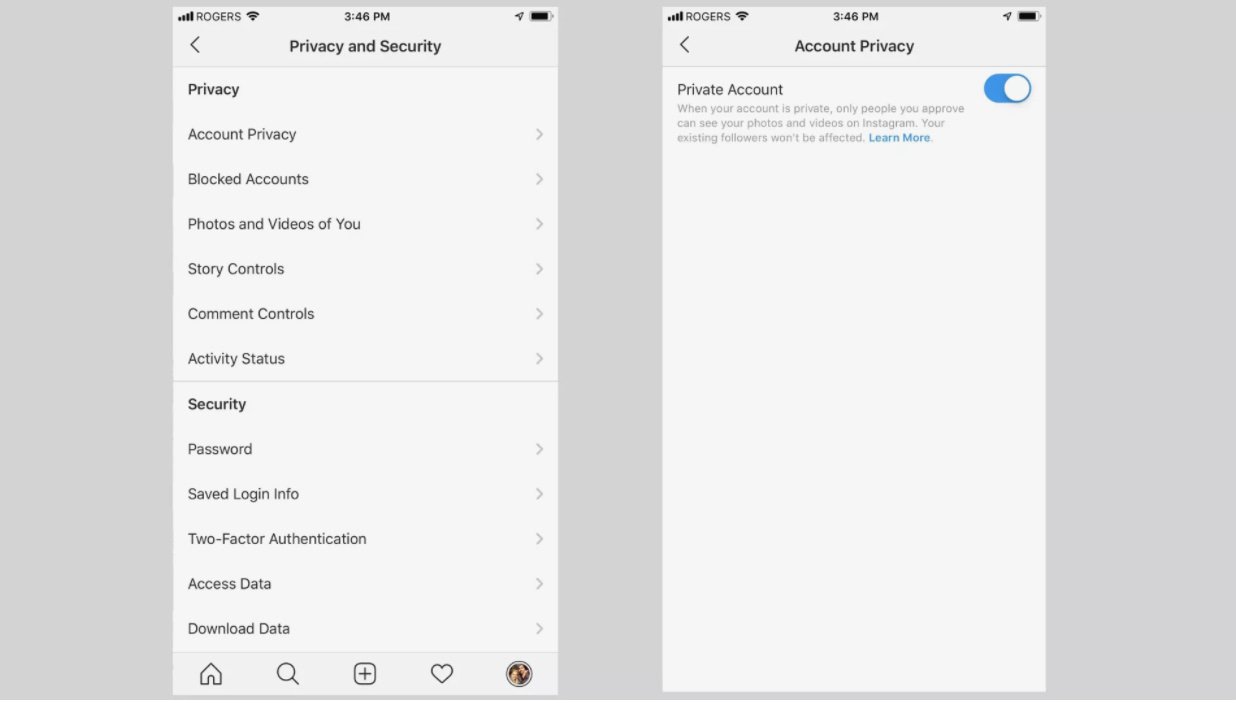 Switch on Privacy, for either the whole account or just certain photos.
That’s it, your Instagram profile is private. As long as you have Private Account option is on, only the users who are currently following you, plus any new users you approve if they request to follow you, will be able to see your Instagram content.
That’s is it, you’re Safe.
Steps
- Tap the profile icon in the lower right-hand corner of your screen
- Tap the menu icon in the upper right
- Tap Account Privacy then tap the button next to Private Account
- Choose to block everyone or just certain photos
- Done that’s it
>>>>>>>>>>> >>>>>>>>>>>>>> >>>>>>>>>>>>>>>
That’s it, happy instagramming
Norton 360 Premium App – Catch a summer bargain limited numbers available at this price… Check Pricing
Articles of Interest
How to make TikTok safer but not SAFE.
The Right Social Media profile for Kids aged 8-11
Don spend a penny on your kid’s online Safety here’s how
Handy Connections
Online Safety Talks for Primary School.
Talks for Teenagers & Secondary School